Shared WhatsApp inbox,
next to the CRM record.
A shared WhatsApp inbox gathers all of your team's conversations into one list: you do not hunt for who wrote from which number, and you do not ask 'did you see this message'. The customer's CRM record sits next to the conversation, and you manage the owner, the stage and the note from there.
Unlimited users · No per-person fee · 14 days free
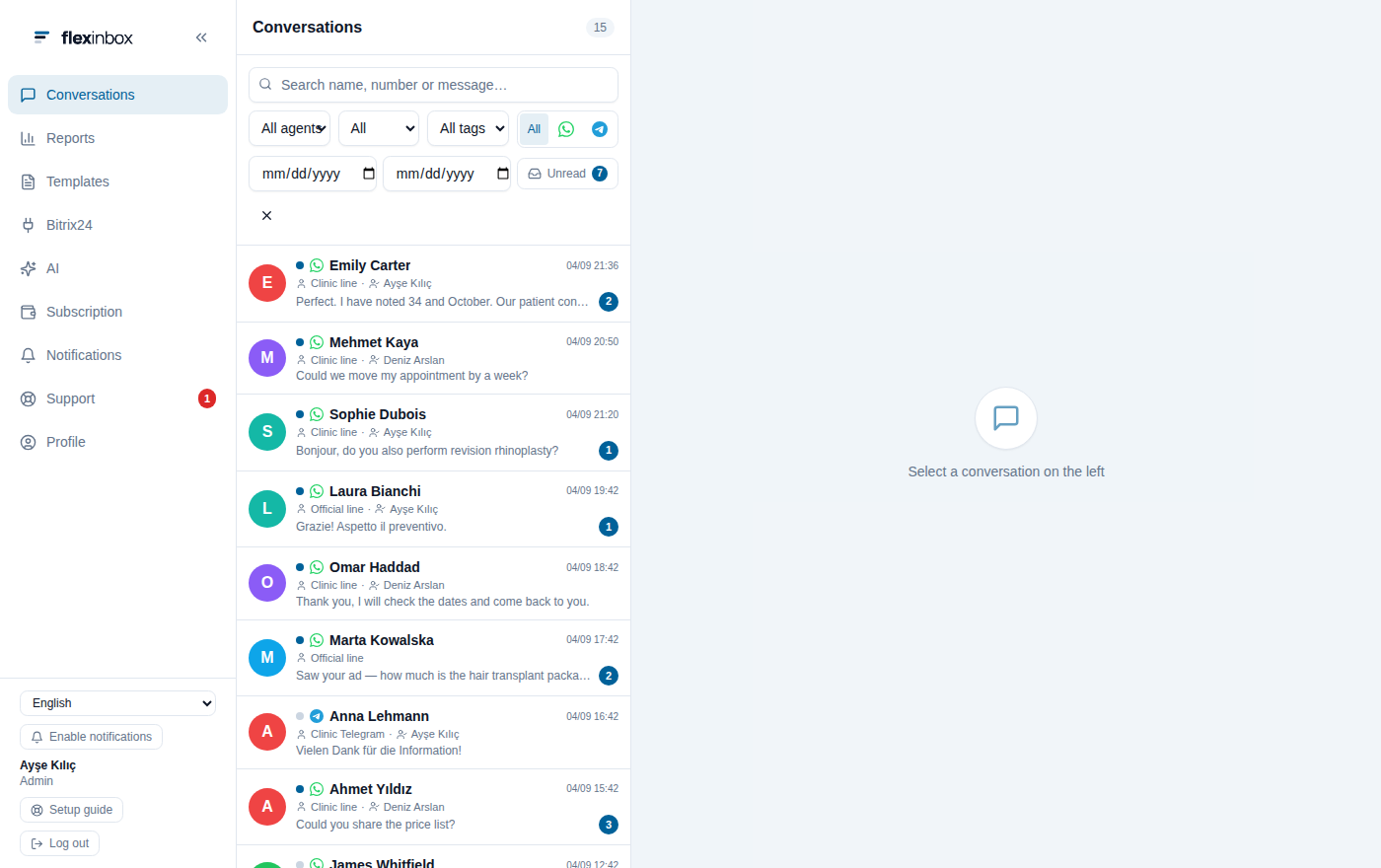
Four separate sources in one list;
your team opens no second screen
Filtering instead of searching
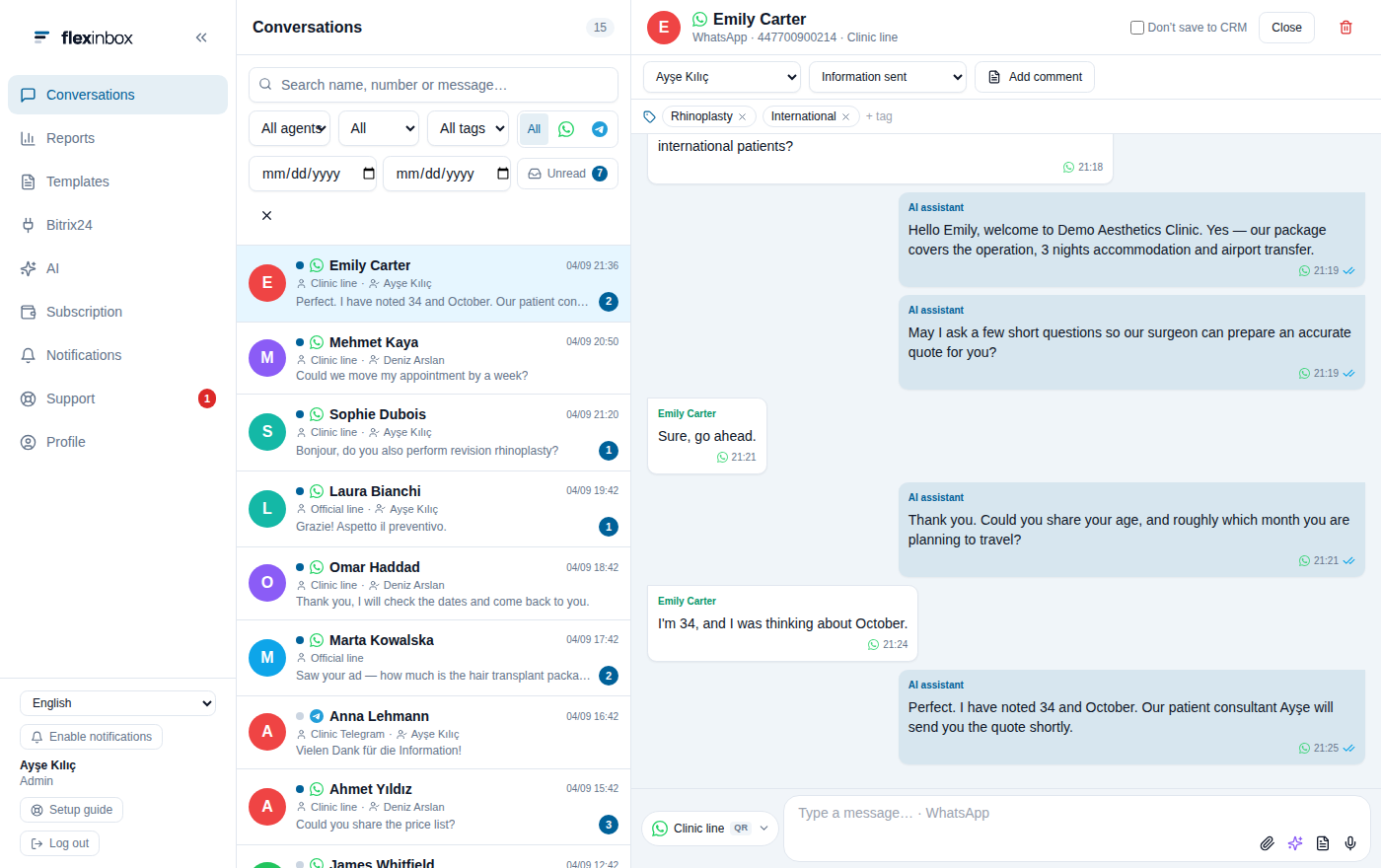
Conversation on the left, record on the right:
no second screen
The shared inbox is the team's common screen
WhatsApp, the official line and Telegram flow in the same list. Agents, admins and supervisors see the same screen with different permissions: you decide who can see what.
- Filter by line, channel, tag, owner and date; unread in one click
- Search by name, by number or inside messages
- Assign, close and reopen a conversation; who took over is visible
- Tags are used for filtering and reporting
Whatever WhatsApp has, the panel has too
There is no new messaging habit for your team to learn. Voice notes, photos, documents, quoted replies and reactions work in the panel too.
Voice note
A voice note you record in the panel is converted to the format WhatsApp requires and sent.
Media and documents
Photos, video, audio and documents flow both ways, and the limits for large files follow the rules of Meta.
Quotes and reactions
Reply by quoting a message, or react to it; the customer sees it the same way.
The CRM record right above the conversation
Change the owner, move the stage forward and add a note to the record while you are talking to the customer. After the conversation there is no leftover step of 'let me enter this into the CRM'. Stage and status lists come straight from your CRM and are not defined by hand.
Owner
The owner of the record in the CRM becomes the conversation owner; change it from the conversation and the CRM changes too.
Stage and status
The lead status or the deal stage is moved forward from the conversation, and the list comes from the CRM.
Notes and tags
The note you write lands on the timeline of the record, and tags are reported in the panel.
Let the assistant give the first reply
The assistant you train with your own content handles the first questions, and your agent takes over the conversation whenever they want. Your price list, your frequently asked questions and your website are the sources. Details: AI agent.
With your own content
Upload files, your website and your FAQs; the assistant answers only from the information you give.
Take over
When an agent writes, the assistant goes quiet and the conversation passes to a person.
Only what you use
Billing runs on credits; turning the assistant off is a single choice, and the line keeps working.
Who replied, and how fast
Measurement, not guesswork
Which agent handled how many conversations, how many minutes the first reply took on average, which conversations went unanswered: it is all in the panel. The volume heatmap shows which hours need more people.
- First reply time: average, median and 90th percentile
- List of unanswered conversations: who is waiting, and for how long
- Breakdown by agent, tag distribution, media usage
- Day and hour heatmap; SLA target hit rate
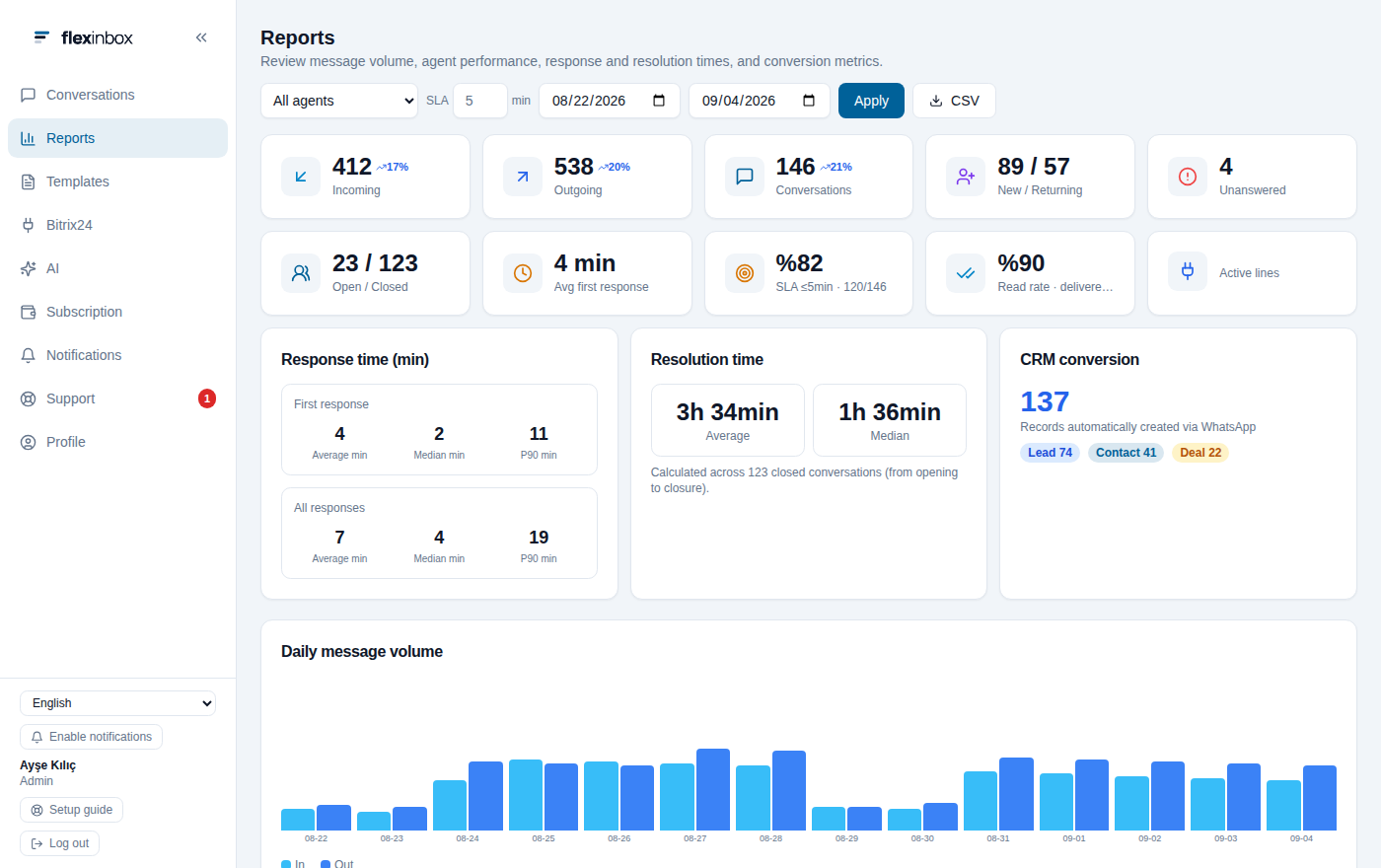
First reply time, unanswered
and breakdown by agent
Included with every line
The items below come with every line you connect, with no extra user or module fee.
Saved replies
Do not write the same answer again every time; send the saved reply in one click.
Tagging
Mark them as ‘asked for a price’ or ‘booked an appointment’, then come back to those people easily.
Roles and permissions
An agent sees only their own customers, an admin sees all of them; you decide the permissions.
Remote line connection
Send a new hire a link and they connect from their own phone.
Instant notification
A browser alert appears when a new message arrives; you do not have to watch the tab.
Audit trail
When a record changes, it shows who changed it; there is nothing to argue about.
GDPR tools
If a customer says 'delete my data', you do it from one place, or export it on request.
Eight languages
Your team abroad uses it in their own language.
Works from a phone too
Reply from a browser on the road or at home; no app to download.
Limits of the shared inbox
Some come from WhatsApp rules, some from a deliberate choice on our side.
Groups are not written to the CRM. WhatsApp groups appear in the panel and can be answered; because a group has no single customer record, it is not written to the CRM.
No editing of incoming messages. If an incoming message is later edited or deleted, that is not reflected in the panel; the conversation history stays as it arrived.
It does not work without a CRM. The shared inbox runs on top of a CRM record; there is no CRM-free use.
Show all technical limitations
No voice or video calls. The panel is for conversation history; WhatsApp calls stay in the phone app.
The 24-hour rule on official lines. If the customer has not written for 24 hours, you can reach them only with an approved template.
Media size follows Meta limits. The file size you can send depends on the rules of the channel; if the limit is exceeded, the panel states the reason.
About the shared inbox
What is a shared WhatsApp inbox?
One shared screen where all of your team's WhatsApp, official line and Telegram conversations are collected in a single list. The customer's CRM record sits next to every conversation; owner, stage and notes are managed from there.
How many users can I add?
No limit and no per-user fee. Your users come from your CRM; you give each one a role. Pricing is based on the number of lines you connect.
Can an agent see someone else's conversations?
It depends on the role. An agent with the personal role sees only the conversations on their own lines; supervisors and admins see more. You also choose who can use a line.
Can I send voice notes?
Yes. A voice note you record in the panel is converted to the format WhatsApp expects and sent; incoming voice notes play in the panel as well.
What is in the reports?
First response time (average, median, 90th percentile), the list of unanswered conversations, a breakdown by agent, tag distribution, a day-hour heatmap and the SLA target hit rate.
Bring your team's conversations onto one screen
Scan the QR code, connect your CRM; get your first message in the panel today.
No credit card · 14 days free