The same WhatsApp number,
on your phone
and in your team's panel.
WhatsApp Coexistence is an official Meta feature: the number in your WhatsApp Business app connects to the WhatsApp Business API without leaving the app. You keep writing from your phone; your team sees and answers the same conversations in the FlexInbox panel, together with the CRM record. The number does not change, and you do not announce a new number to your customers.
Eligibility: Coexistence requires the WhatsApp Business app, a supported country and an eligible Meta business account. We check whether your number qualifies before setup, free of charge.
An official Meta feature; the connection is made on Meta's own screen
The number stays the same · Up to six months of history on eligible accounts · At official line pricing
WhatsApp Business
the business phone
Of course, sending it now
the team panel
You write from the phone, the team sees it in the panel;
it works the other way too, both are the same conversation
What is WhatsApp Coexistence?
WhatsApp Coexistence is the Meta feature that lets a business use the phone number in its WhatsApp Business app on the WhatsApp Business API (Cloud API) at the same time. The connection is made with the 'connect my existing WhatsApp Business app' option on Meta's Embedded Signup screen. One-to-one conversations are mirrored in both directions between the phone and the API: a message written on the phone appears in the panel, and a message written in the panel appears on the phone. The app is not closed and the number is not migrated; your customers keep talking to the same number, and you do not have to announce a new one.
The number was cut off from the phone
Moving to an official line meant shutting the app down. The conversation history stayed on the phone, customers were told a new number, and business cards and ads had to change.
The same number works in two places
The app on your phone stays open. The same number also runs in the panel as an official line: your team, CRM matching, approved templates and the assistant all come on top of the same conversation.
A business outgrowing one phone
Businesses that have written from the same number for years, are growing their team and want customer records kept in a CRM. This is how you open that number to your team without giving it up.
Three steps, without giving up your number
The connection is set up on Meta's own screen; there is no separate application on the FlexInbox side. The steps follow one another on the connection screen.
Select your app on the Meta screen
You start connecting an official line in the panel, and Meta's connection screen opens. There you select the 'connect my existing WhatsApp Business app' option.
Confirm with your phone
You complete Meta's steps in the WhatsApp Business app on your phone. The app must be up to date; linked devices (WhatsApp Web) are logged out during this step and can be linked again afterward.
History syncs, the line appears in the panel
WhatsApp starts syncing the conversation history, and the line is listed in the panel as an official line. You match users to the line, connect your CRM and turn on the assistant if you want.
What happens on the day you connect
Your number stays the same
You do not announce a new number to your customers. Business cards, signage and live ads keep working as they are.
WhatsApp syncs the history
The one-to-one conversations Meta supports can be synced in stages, up to six months on eligible accounts. WhatsApp runs this step; our job is to keep every message after the connection in the panel.
Both sides are mirrored
Whichever side answers, it shows in the same conversation on the other side; a message you send from the phone stays in the panel, and a message you send from the panel stays on the phone.
Technical details: history sync, media and linked devices
- History arrives in three stages: first the last day, then the last 90 days, and finally conversations up to 180 days old. The sync can take a few hours
- Media files are carried over only for messages from the last 14 days; older messages arrive as text, without their files
- Only one-to-one conversations are synced; groups, status updates and calls stay on the phone
- WhatsApp Web and other linked devices are logged out during the connection; you can link them again once it is done
- A number that has been used on the WhatsApp Business API before may need an extra cleanup step on Meta's side; we look at it together during setup
The app, the classic API and Coexistence
The three routes in one table. Coexistence brings the habits of the app and the team features of the API together on the same number.
| Feature | App only | Classic official line | Coexistence |
|---|---|---|---|
| The WhatsApp Business app on the phone stays open | |||
| Several agents write from the same number | |||
| Every conversation matches a CRM record | |||
| Bulk and automated messages with approved templates | |||
| WhatsApp groups | On the phone | App groups do not reach the panel | Stays on the phone |
| Broadcast lists in the app | — | Turned off | |
| Does the number have to change | — | Yes: the number moves to the API, the app closes | No |
A Coexistence line works like an official line in the panel
The connected number is listed in FlexInbox as an official WhatsApp line. Everything an official line has is here too: CRM matching, multiple agents, approved templates, WhatsApp forms and the assistant. Carrying on from your phone turns none of it off.
- Every conversation opens with its record in Zoho, Bitrix24, HubSpot or GoHighLevel; the owner and the stage sit above the conversation
- Several agents work on the same number; you can see who is handling which conversation
- If a customer has not written for 24 hours, you reach them with an approved template; templates go to Meta for approval from the panel
- The assistant answers the first question from your own content, and stops when you take over
- Reports: who replied and how fast, how many conversations went unanswered
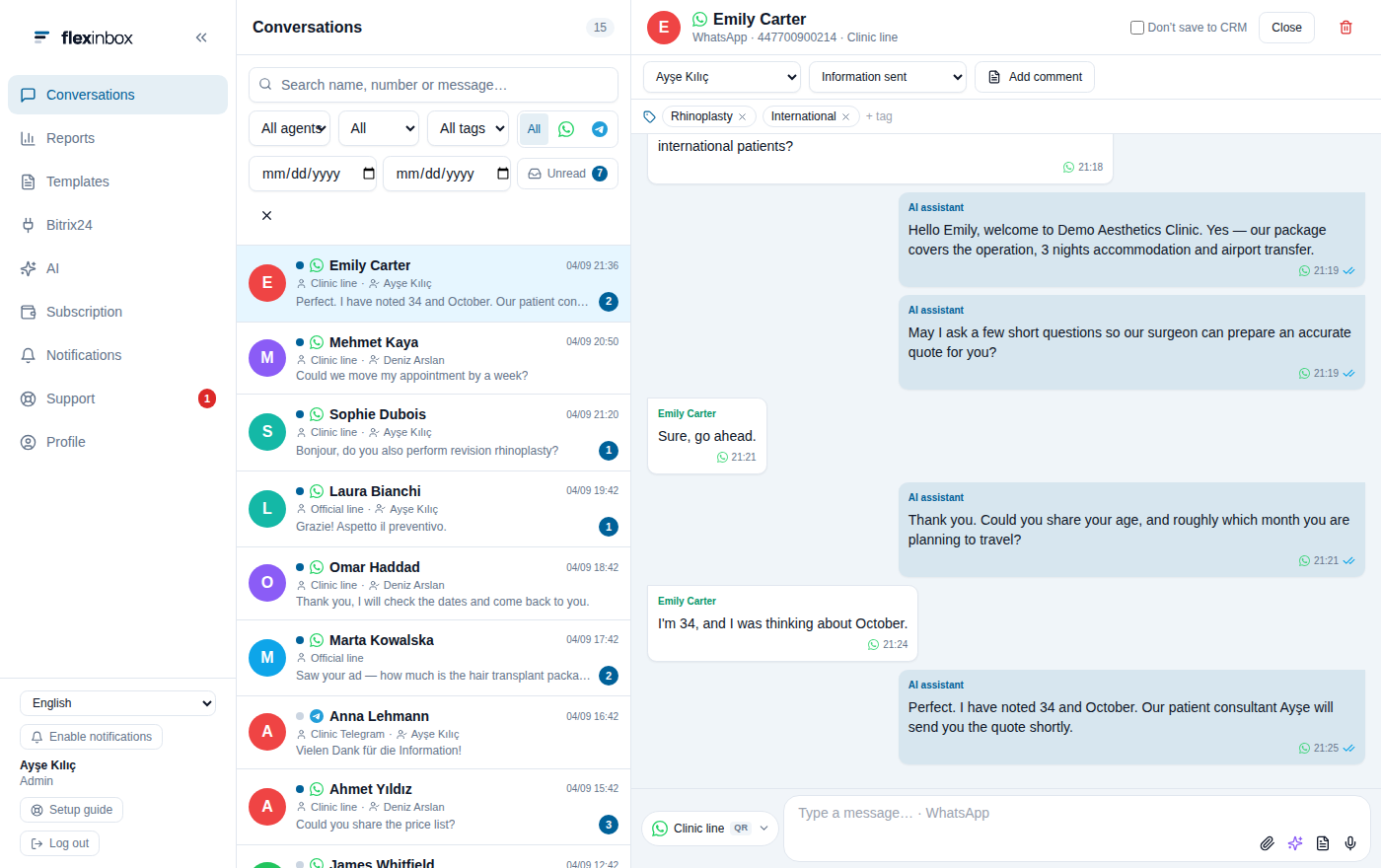
The conversation you see on your phone sits here
together with the CRM record
Differences to know before you connect
Coexistence works under the rules WhatsApp sets, and the panel takes the place of some app features. Instead of broadcast lists in the app, you send approved WhatsApp templates from the FlexInbox panel; for group conversations you can connect a separate QR code line. We write the differences here so you do not learn them after signing.
A separate line for groups. If you want to run group conversations from the panel, a separate QR code line is connected; the groups of the Coexistence number stay in the app on your phone.
Bulk sending from the panel. Bulk and automated sending is done from the panel with approved templates; broadcast lists in the app cannot be used after the connection.
Disappearing messages off. Disappearing messages and view once are turned off in one-to-one conversations; the whole conversation history stays permanently in the panel and in the CRM.
Show all technical limitations
No live location or status. Live location messages are turned off in one-to-one conversations; status updates do not reach the API.
Calls stay on the phone. Voice and video calls continue in the app and do not reach the panel.
Catalog and order tools stay in the app. Catalog, order and business profile tools are managed from the app on your phone; the panel does not touch these areas.
Message editing and recall are off. Editing a sent message and deleting it for everyone are not available on the connected number.
Read receipts belong to the phone. The app on your phone controls the blue ticks; when the panel marks a conversation as read, no tick is sent to the customer.
Profile photo from the phone. The line's profile photo and business profile are changed from the app on your phone; the panel keeps this area locked.
20 messages per second. Sending speed on a Coexistence line is currently limited to 20 messages per second. It is subject to Meta's current limits and may change with account and infrastructure conditions.
Media for 14 days. In the history sync, files are carried over only for messages from the last 14 days; older messages arrive as text.
Open the app regularly. Meta asks that the app be opened at least once every 13 days for the sync to continue. Do not delete the app from your phone.
An up-to-date version is required. The WhatsApp Business app must be version 2.24.17 or later; update it before connecting.
Country availability is up to Meta. Meta may keep Coexistence turned off in some countries. If the 'connect my existing app' option does not appear on the connection screen, it is not open yet in your number's country.
Linked devices are relinked. WhatsApp Web and other linked devices are logged out during the connection; you link them again afterward.
You can end the connection yourself at any time: in the app on your phone, Settings › Account › Business Platform › Disconnect. This is done only from the phone; we cannot end it on your behalf. Once you do, your number goes back to working on its own in the app, and the line becomes inactive in the panel.
The same price as an official line
A Coexistence line is billed in FlexInbox as an official WhatsApp line; there is no separate module fee. The price does not change however many agents you add. Details on the pricing page.
- Coexistence line (official line)
- $60 / month · $600 / year
- Agents and users
- Unlimited, free
- Template messages sent from the panel
- Meta's rates
WhatsApp Business API usage fees are calculated separately by Meta according to message category and destination country, and paid directly to Meta; we add no commission. There is no Meta fee for messages you write from the app on your phone.
About WhatsApp Coexistence
What is WhatsApp Coexistence?
It is the Meta feature that also connects the number in your WhatsApp Business app to the WhatsApp Business API, without closing the app. One-to-one conversations are mirrored in both directions between the phone and the panel; the number does not change, and your customers keep talking to the same number.
Does my number change, do I have to tell my customers?
No. The same number works on the phone and in the panel. The number on your business cards, signage and ads stays as it is.
Does WhatsApp Business on my phone shut down?
No. You keep writing from the app; what you write appears in the panel, and what the panel sends appears on the phone. Meta only asks that the app be opened regularly.
Does my old conversation history come to the panel?
WhatsApp syncs one-to-one conversation history in stages, up to six months; media files are carried over only for the last 14 days. WhatsApp runs this step and it can take a few hours.
What happens to my WhatsApp groups?
Groups stay in the app on your phone and do not reach the panel. If you want to manage groups from the panel, a separate QR code line is connected; WhatsApp groups are supported on that line.
Can I still use my broadcast lists?
After the connection, broadcast lists in the app are turned off. Bulk and automated sending is done from the panel with Meta-approved templates.
How many agents can write from the same number?
There is no limit and no per-person fee. Every agent has their own account, and the panel shows who is handling which conversation.
How is it different from a classic official line?
On a classic official line the number lives only on the API and the app on the phone cannot be used. With Coexistence the app stays open; in exchange, some app features such as groups, broadcast lists and disappearing messages are turned off, and sending speed is subject to Meta's Coexistence limit.
What does it cost?
Official line pricing in FlexInbox: $60 per month or $600 per year. For template messages sent from the panel, the API fee Meta calculates by category and country is paid separately to Meta; there is no Meta fee for what you write from your phone.
Is it available in every country?
Meta decides availability and it can vary by country. If the 'connect my existing WhatsApp Business app' option does not appear on the connection screen, it is not open yet in your number's country; write to us before setup and we will check it together.
What happens if I disconnect?
The connection is ended only from the app on your phone: Settings › Account › Business Platform › Disconnect. Your number goes back to working on its own in the app; the line becomes inactive in the panel, and your past conversations stay in the panel.
Line types
QR code numbers, official lines and Telegram: which one when, with their limits.
Go to the pageOfficial line and forms
Approved templates, WhatsApp forms and writing form answers to the CRM.
Go to the pagePricing
Line and module prices, credit packages and sample baskets on one page.
Go to the pageOpen your number to your team without giving it up
On eligible accounts the connection steps take a few minutes; syncing past conversations can take longer. We check country availability and the state of your number together before setup.
Eligibility check is free · At official line pricing