Let your customer fill the form in
without leaving WhatsApp.
With WhatsApp Flows your customer fills the form in inside the chat, without opening a link. The answers land in the conversation and are written to the matching CRM record. You build the form in the FlexInbox panel, with no code and no JSON.
Ready-made templates: Appointment · Quote · Pre-assessment · Satisfaction
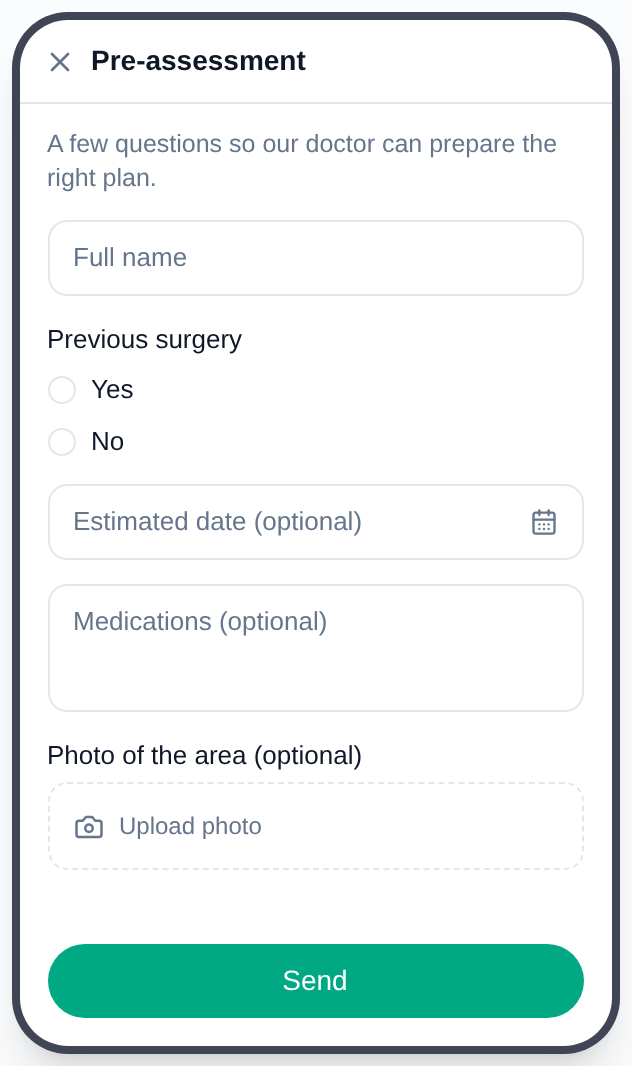
The form opens inside WhatsApp;
the customer never leaves the app
Do not make customers leave WhatsApp to fill a form
When you share a link in the chat, the customer has to open a browser, wait for the page to load and then fill the form in. WhatsApp forms turn those three steps into one.
No browser, no link
The form opens inside WhatsApp. The customer does not leave the app and does not wait for a page to load.
The basics arrive filled in
Age, previous treatment, preferred date and similar details are already on the record when the first conversation starts; your agent does not ask the same questions again.
Answers are written to the record
Answers land in the conversation, are added to the record timeline as a note and are written to the CRM fields you mapped.
A form in three steps
In the panel: Templates › Forms. You start from a ready-made template or build a form from scratch; fields can be pulled from your CRM or added by hand.
Start from a template
Appointment request, pre-assessment, contact/quote request and satisfaction survey come ready. You pick a template and adjust the labels to your own wording.
Edit the fields
Add fields, reorder them, make them required. If you pull a field from your CRM, its type and its options come from there too, and the answer is written back to the right field.
Preview it, then publish
You see how the form looks on the phone while you write it. You create a draft and preview it first; a published form can never be changed again (a Meta rule).
A field for every question
The fields you can put in a form fall into five groups. The full list is one click away.
Text and contact details
Name, email, phone, free-form notes
Single and multiple choice
Ready-made options as a list, a choice button or a chip
Date and date range
A single day, or a start and end for a stay
Checkbox
Privacy notice and explicit consent
Photo and document upload
An image, a report, a prescription or a contract
All seventeen field types
Meta does not support the time picker or the slider, so they are not on the list.
Pull the fields from your CRM, and send the answers back
While building the form you add a field with "Pull from CRM". The mapping does not live on a separate screen but on the field itself: the link is made the moment you add it.
The type and the options come from your CRM
It lists the lead, contact and deal fields in your CRM and you pick the one you want to ask about. The type comes across on its own: a field that is a dropdown in your CRM becomes a choice in the form, a date field becomes a calendar. The option list comes from your CRM too; when it is long, you tick which options go into the form.
- Custom fields are listed under their real name in your portal, not their technical code
- Read-only fields and types that cannot go into a form never reach the list
- A list field left without options is filtered out too; no empty dropdown appears in the form
- You can use several CRM fields in one form and leave some questions unmapped
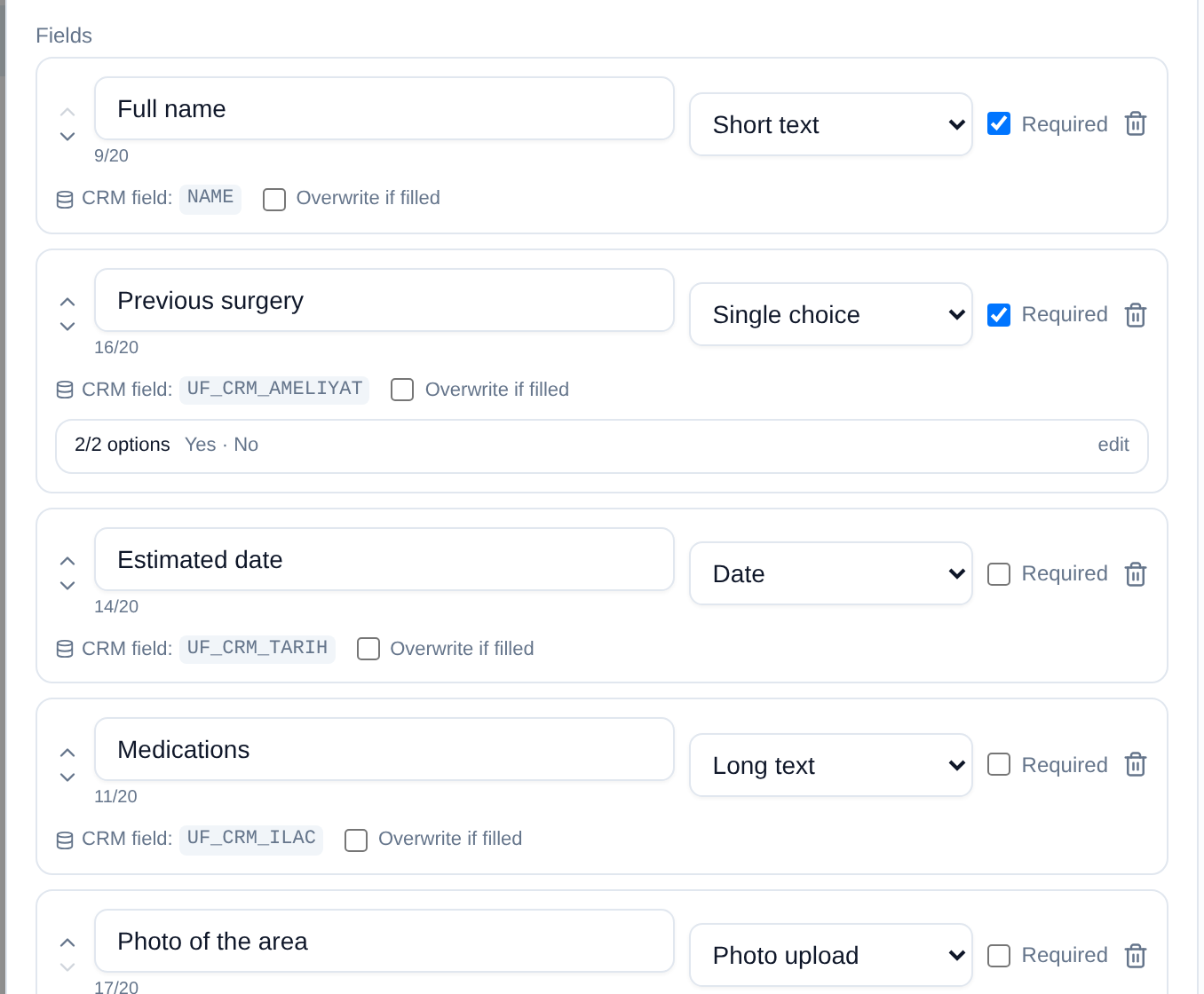
Under every field you see
the CRM field it is bound to
Answers are recorded in two layers
The answers are first added to the conversation record: all of them, with field names and option titles resolved, are written to the record timeline as a note. In the second layer, the questions mapped to a CRM field are written to the matching contact or lead fields.
- In choice fields the value is already the CRM's own option id, so there is no title-matching risk
- A field that already has a value is not overwritten; you can enable overwriting per field
- If the conversation is pinned to a record, the form is written there; the link between a deal and a contact is followed
- If the number is not found in your CRM, a new lead record is created and the answers are written to it
- A date range is written to a single field in readable form; uploaded files land in the conversation, not in a field
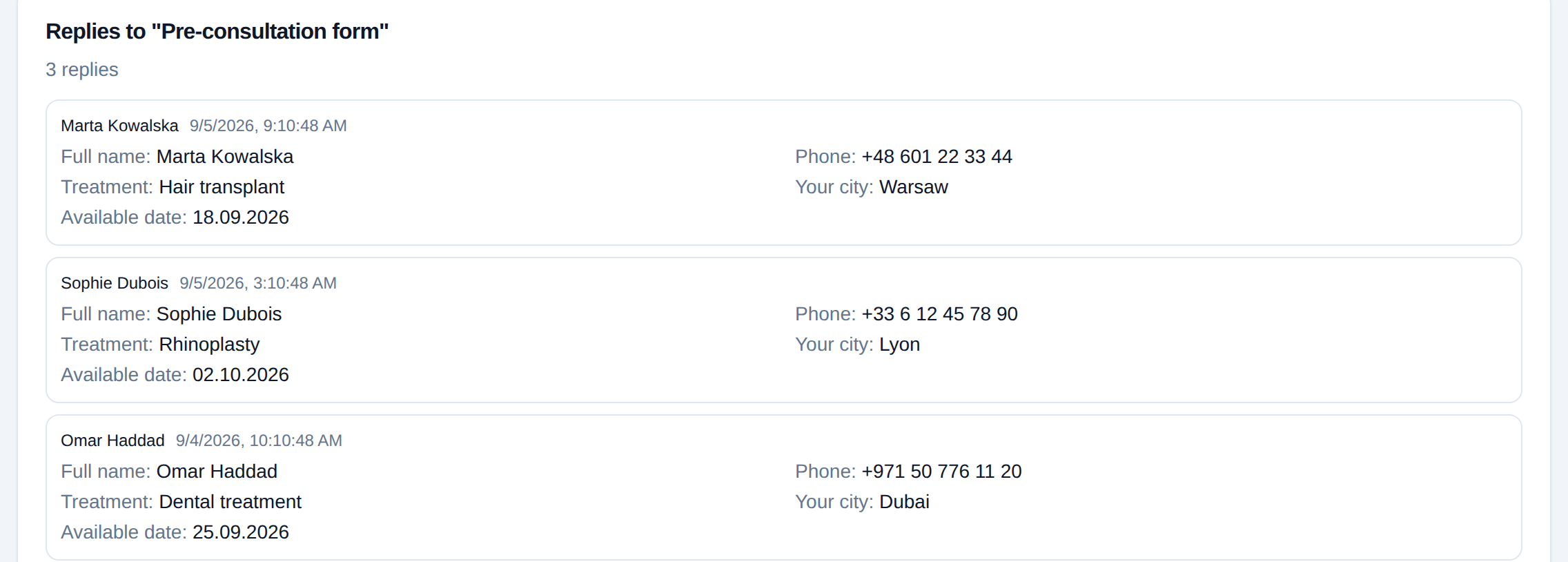
Who filled it in and what they wrote:
in a single list
Directly in an open chat, with a template when it is closed
During an open conversation you send the form straight from the chat: the interactive message button in the composer › Flow. If the 24-hour window is closed, you send the form with an approved WhatsApp template that carries a Flow button.
In an open chat
If the customer wrote in the last 24 hours, the form is sent directly; no template and no approval is needed.
While the window is closed
In the template builder you pick "Form (Flow)" as the button type and bind a published form. Once the template is approved, it can be sent while the window is closed.
When the answer arrives
The answer arrives when the customer fills the form in and submits it, not when you send it. Sends and answers are counted separately.
Then look at whether it worked
Under every form you see how many were sent, how many answers came back, how many different people answered and the average time to answer. Form responses are listed per form.
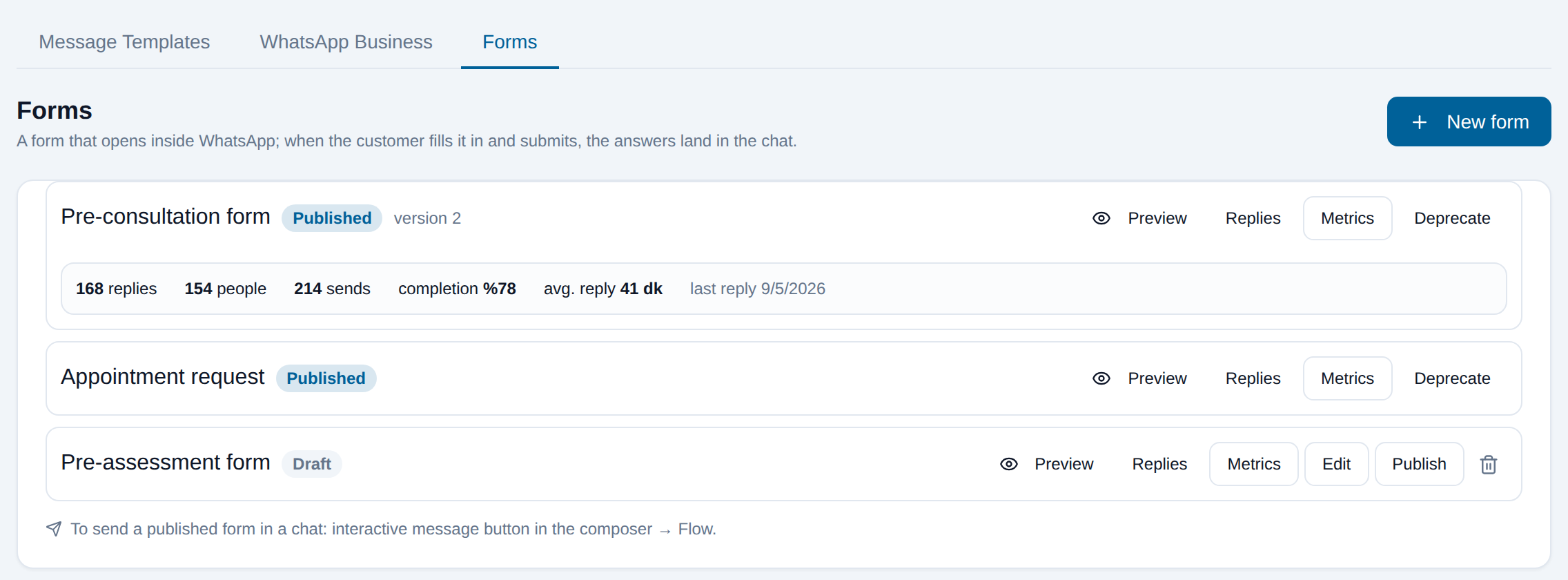
How many sent, how many answered,
completion rate
Sends and answers
Both are counted from our own records and combined with the provider's response list.
Completion rate
If the number of sends is unknown, the rate is not calculated. Instead of inventing a percentage over an unknown denominator, we write down the reason.
Average time to answer
The time between sending the form and the answer arriving; it tells you whether the form is easy to understand.
What you cannot do today
Some of these are Meta's rules, some are FlexInbox limits today. We keep the two apart.
Single screen (FlexInbox limit). Our form builder supports single-screen forms. Branching based on an answer and pulling dynamic data from an external server are not supported yet.
Bitrix24 and Zoho (FlexInbox limit). Pulling fields and writing answers into CRM fields works today on Bitrix24 and Zoho CRM. On HubSpot and GoHighLevel the form answer is visible in the chat but is not written to CRM fields.
An official line is required (Meta rule). Forms only work on a WhatsApp Business API line. A form cannot be sent from a QR-code line.
Show all technical limitations
A published form cannot be changed (Meta rule). Meta does not change the definition of a published form. A new version means a new form; that is why the draft preview exists.
A 20-character label limit (Meta rule). Consent text is 80 characters. Long question text stops the form from opening on the phone; the builder warns you while you write.
One upload field (Meta rule). A form can hold only one photo or document field; by default 5 files and 10 MB per file.
No time picker (Meta rule). Meta does not support the time picker and slider components, so they are not in the field list.
Meta's screen metrics are not available. Meta metrics such as which screen people abandon are not exposed on the provider side. We measure sends and answers from our own records.
A failed write is not retried. If the CRM cannot be reached, the answer stays in the chat but is not written to the field; the error goes to our error tracking. There is no automatic retry today.
About WhatsApp Flows
What is WhatsApp Flows?
It is WhatsApp's form screen that opens inside the conversation. The customer does not tap a link and open a browser; they fill the form in inside WhatsApp, and when they submit it the answers land in the same conversation.
Do I need to know code or JSON to build a form?
No. You start from a ready-made template in the panel and edit the fields and labels. The Flow JSON is generated in the background; you never see it.
Can I send a form while the 24-hour window is closed?
Yes. In the template builder you pick "Form (Flow)" as the button type and bind a published form. Once Meta approves the template, you can send the form while the window is closed. During an open conversation no template is needed and the form is sent directly.
Can I pull form fields from my CRM?
Yes. When you add a field with "Pull from CRM", its type and option list come from your CRM, and the answer is written back to the same field. This link works today on Bitrix24 and Zoho CRM.
How do the answers reach the CRM?
In two layers. Every answer is written to the record timeline as a note; the questions mapped to a CRM field are also written to the matching contact or lead fields. If the number is not found in your CRM, a new lead record is created.
Can I edit a form after publishing it?
No, Meta does not change the definition of a published form. That is why we recommend creating a draft and previewing it on the phone first; a change means creating a new form.
Is there an extra charge?
There is no separate FlexInbox charge for WhatsApp Flows; it is included in the official line subscription. Template messages used outside the 24-hour window are subject to Meta's current rates.
Official line and templates
The line forms run on: the application, approved templates and the 24-hour window.
Go to the pageBitrix24 integration
The CRM the form answers are written to: Open Channels, fields and robots.
Go to the pagePricing
The official line is $60/month; forms are included, with no separate FlexInbox charge.
Go to the pageLet us build your WhatsApp form together
If you already have an official line, you can publish your first form today. If not, the official line application has to be completed first.
No credit card · 14 days free